Skip to content

CW Pulsar Web Demo

Available late 2026
Shop

Output

Sequence

Resolved

Editor

Key Type

Settings

Clear Text
Sidetone
Iambic Mode
Word Space
Keying WPM
Word Space Length
This web demo cannot use your full keyboard. To send real key commands like Ctrl+Shift+V, you'll need a real CW Pulsar.

Key Map

Commands

Commands
Sequence Resolved Repeat Note

Letters

Letters
Sequence Resolved

Numbers

Numbers
Sequence Resolved

International Symbols

International
Sequence Resolved

Extended CW Pulsar Symbols

CW PULSAR
Sequence Resolved

Key Types

Morse code can be sent using several different types of keys. Each has its own feel and method of operation, ranging from fully manual to partially automated.

Straight Key

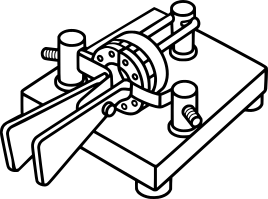
The straight key is the simplest and oldest type of Morse key. It consists of a single lever that closes a contact when pressed. The operator manually controls the timing of both dits and dahs by pressing and releasing the key.

Straight keys require precise rhythm and control, as all element lengths and spacing are created entirely by the operator. While simple and reliable, they can be fatiguing at higher speeds.

Bug (Semi-Automatic Key)

A bug, or semi-automatic key, mechanically generates a stream of dits using a vibrating arm, while dahs are still formed manually by the operator. Pressing the paddle in one direction produces a series of evenly spaced dits, while pressing in the other direction produces a single dah.

This allows for faster sending than a straight key, while still requiring operator timing for dahs and spacing. Bugs have a distinctive sound and require practice to use effectively.

The name "bug" comes from the lightning bug logo on the original Vibroplex key that introduced this style.

Single Paddle (Electronic Keyer)

A single paddle is used with an electronic keyer. It has two directions: one for dits and one for dahs. The keyer generates properly timed elements automatically when the paddle is pressed.

Unlike a bug, both dits and dahs are generated electronically, ensuring consistent timing. The operator controls when elements begin and end, but does not need to manually time their lengths.

Iambic Paddles

Iambic paddles are similar to a single paddle but allow both directions to be pressed simultaneously. When both paddles are squeezed together, the keyer alternates between dits and dahs automatically.

This enables more efficient sending of certain character patterns and reduces finger movement. Iambic paddles are typically used with keyers that support Mode A or Mode B, which control how alternating sequences are generated when the paddles are pressed and released.

Iambic paddles are widely used in modern electronic keyers and are well suited for higher-speed operation.

CW Pulsar key selection

The physical device does not need to know what type of key you're using, only how many outputs the key has. Straight keys and bugs have one output, while paddles and iambic paddles have two. A "Keys" switch can be set to 1 or 2.

In practice the CW Pulsar can't tell the difference between straight keys and bugs, or paddles and iambic paddles. It will read the bug the same as a straight key, and a paddle the same as an iambic paddle. Iambic logic will be available with a single paddle plugged in and the "Keys" setting set to 2, but since it is physically impossible to push the paddle both directions at once it will never be activated.

Options are presented in this web demo purely for the fun of trying out different key types virtually.

Sidetone

A sidetone is an audio tone generated by a keyer while you are sending Morse code. It allows the operator to hear their own dits and dahs in real time, even if no actual radio signal is being transmitted.

Historically, sidetone originated in radio transmitters where the operator needed audible feedback to confirm that the keying circuit was working. Without it, sending Morse would be silent, making it difficult to maintain proper timing and rhythm. Modern keyers and practice devices generate a sidetone electronically for the same reason.

While not strictly necessary, sidetone greatly improves usability. It helps the operator develop consistent spacing, recognize mistakes immediately, and build muscle memory. For many users, it is an essential part of comfortable and accurate Morse code operation.

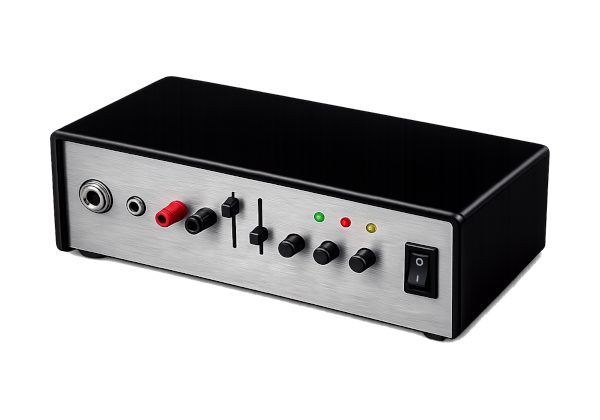
The CW Pulsar has a physical switch for your sidetone setting (off, low, or high), and also a command sequence ST= to toggle the setting virtually so that you don't need to move your hand to the device. The CW Pulsar will always start up in the mode determined by the physical switch. This web demo always starts with sidetone off since browser permissions are needed first to play sound.

Modes A and B

Iambic keys often operate in one of two modes based on popular keyers.

Mode A is based on the Curtis 8044 chip. One of its key features was having both a dit memory and a dah memory[1]. If the opposite paddle makes contact during an element, its element will be queued. In Mode A this only occurs if the paddle changes state during the element. If a dah is in progress and the dit paddle is pressed during it, a dit will follow; however, if the dit paddle was already held when the dah began, no dit memory is set, and releasing the paddles ends the sequence when the dah completes.

Mode B, based on WB4VVF's Accu-keyer, also has dit and dah memories but sets them whenever the opposing paddle is active at any point during the current element, regardless of whether it changed state during that element[2]. If a dah is in progress and the dit paddle is active at any time during it, a dit will follow.

This difference is most clearly felt when squeezing the paddles. In mode A, releasing the squeeze ends the sequence on the current element; in mode B, a trailing opposite element is sent.

Consider the letter R. In mode A, you would squeeze the paddles starting with dit, keep squeezing through the dah, and release on dit. Mode B still requires starting the squeeze on dit, but you may release them once the dah is in progress. Since dit was active during dah, its memory is set and a trailing dit will sound.

The CW Pulsar has a physical switch for your iambic mode setting. This setting is ignored if you are not using an iambic key type.

  1. Curtis, John G. "8044 Series Keyer-On-a-Chip: Application Note." Curtis Electro Devices, Inc., 22 Jan. 1992.
  2. Garrett, James M. “The WB4VVF Accu-Keyer.” QST, Aug. 1973, pp. 19-23.

Word Spacing

When sending Morse code a space between words is defined as 7 units (see WPM info for more detail on units). If no elements are sent for 7 or more units, a space is assumed.

Since a CW Pulsar is used for typing on a computer, the context will differ as to whether this space is useful or not. If you're typing prose such as an email, word spacing is likely desirable as it lets you stay in the flow of sending keystrokes; however, if you're typing out a URL or coding there may be long pauses between characters as you transcribe or make decisions. In these scenarios, registering word spaces would only result in unnecessary backspacing.

The CW Pulsar has a physical switch for your word spacing setting (on or off), and also a command sequence WS= to toggle the setting virtually so that you don't need to move your hand to the device. The CW Pulsar will always start up in the mode determined by the physical switch.

Words Per Minute (WPM)

In Morse code, speed is typically measured in words per minute (WPM). Rather than counting individual characters, WPM is based on a standardized “word” so that different operators and systems can be compared consistently.

The standard word used is PARIS. This word was chosen because it contains a representative mix of dits, dahs, and spacing. By convention, one word is defined as the exact number of timing units required to send “PARIS,” including the spaces between its letters.

Morse timing is built from a single basic unit, the length of a dit:

When the word “PARIS” is sent using these rules, it totals 50 time units. How many times 50 units can be repeated within 60 seconds is the WPM.

units per minute = WPM * 50

From this, the length of one unit (one dit) can be calculated as:

unit length in seconds = 60 / (WPM * 50)

unit length in milliseconds = 60 * 1000 / (WPM * 50)

or simplified as:

unit ms = 1200 / WPM

For example:

Setting the WPM of the CW Pulsar tells it how to distinguish between a dit, dah, and inter-element space, and should be based on the keying speed that feels comfortable to you. If you key quickly with short dits and dahs, you'll want a higher WPM. If you key slowly, you'll want to set the WPM lower so that the CW Pulsar doesn't misinterpret your dits as dahs.

Notably, the CW Pulsar does not consider your word spacing as part of its WPM setting--this is broken out into a separate Word Space Length setting. The WPM setting only reflects the theoretical WPM of your keying speed given standard spacing, but you may independently set longer spacing if you prefer to key fast but leave longer gaps between characters and words.

Word Space Length

In standard Morse code timing, spacing is just as important as the dits and dahs themselves. Characters are separated by a gap of 3 units, and words are separated by a gap of 7 units. These spaces are what allow the listener to distinguish individual letters and words.

Farnsworth timing is a technique used to improve readability while learning or operating at slower speeds. Instead of slowing down the individual dits and dahs, the character elements are sent at a speed reflective of the desired WPM, but the spacing between characters and words is increased. This means the overall transmission speed (WPM) is reduced, but the sound of each character remains fast, crisp, and easy to recognize.

The CW Pulsar allows you to set your spacing timing to whatever is comfortable. If you leave a gap in your keying and it is longer than an inter-character gap, but shorter than an inter-word gap, then the CW Pulsar assumes it's an inter-character gap regardless of its actual length. Adjusting this setting lets you choose any timing style from standard morse out to very long Farnsworth timing.

If you're getting unwanted spaces in your words, simply increase this setting. Conversely, if it's taking too long for spaces to be inserted after you've finished keying a word, reduce this setting.

How commands work

Commands are triggered by keying one or more letters plus a command element as a prosign (i.e. sent as one continuous sequence without the normal pause between letters). On paddle keys, the command sequence is the prosign SO (memorizable as "send order" or "special operation"). On straight keys and bugs, it is either SO or a long hold (5x the length of a dit). In the commands table, the command element is represented as =.

All commands are mnemonic to make them easy to remember, and usually correspond to the first letter of the special key you're trying to press. For example, Enter is E= and Print Screen is P=. Commands that represent a "more extreme" version of something take two repeating letters. For example, left is L= and Home is LL=. S= gets you Shift; SS= gets you Caps Lock.

Modifiers

Any commands that require an additional stacked keystroke to have meaning will wait for your next keystroke. For example, after a Shift command, the "modifier" LED on your CW Pulsar will illuminate and your next letter will be capitalized. In this manner you can do complex actions like Alt+Tab with a sequence like A= T=. Modifiers can also be stacked, allowing you to press Ctrl+Alt+Delete in new and exciting ways!

Repeats

Any commands that make sense to repeat can be repeated by continuing to send elements/holding the key down. For example, to emulate holding the right arrow key, send R=, then simply continue holding. On straight keys and bugs, the command will repeat on an interval the length of one dah. On paddles, you can continue holding the dah after SO, or you can transition to dits to repeat the command faster. Commands that do not make sense to repeat, like Shift, do not repeat automatically. See the commands table for which commands repeat.

Soft Overrides

Lastly, the CW Pulsar provides some shortcuts for its physical switches so that you can change keying settings without reaching over to touch the device. These include commands like ST= to toggle your sidetone on and off, and WS= to toggle automatic word spacing. Want to key a little faster or slower? Then think back to your Q codes! These commands override the physical switches until the device restarts, the switch's toggle command is sent again, or the switch is physically toggled.